آموزش ایجاد رابط گرافیکی ساده در متلب
.
ساخت یک Graphical User Interface
.
برای آشنایی بیشتر با محیط GUI در متلب لینک های بالا را مشاهده کنید.
لینک دانلود فایل های کدهای زیر و به همراه فیلم آموزشی در پایین صفحه قرار دارد.
*نکته: فایل با پسوند m و fig هر دو باید در یکجا ذخیره شده باشند.
*نکته: کدهای زیر فقط بخش mفایل است و شما باید فایل fig را درست کنید و tag هر کلید را هم نام بخش callback این کدها بذارید و استفاده کنید یابرای راحتی کار فایل ها را دانلود کنید و استفاده کنید و روی آن ها تغییراتی ایجاد کنید و تمرین کنید.
.
.
برنامه اول:
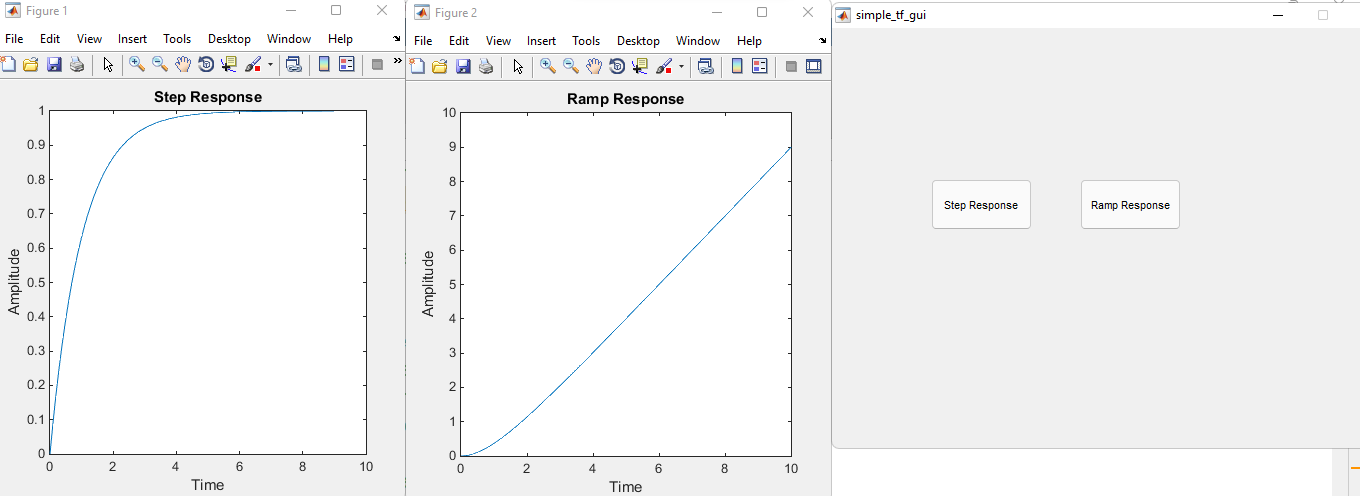
در این برنامه پاسخ پله و شیب تابع تبدیل را نوشتیم
.
کد برنامه:
.
function varargout = simple_tf_gui(varargin)
% SIMPLE_TF_GUI MATLAB code for simple_tf_gui.fig
% SIMPLE_TF_GUI, by itself, creates a new SIMPLE_TF_GUI or raises the existing
% singleton*.
%
% H = SIMPLE_TF_GUI returns the handle to a new SIMPLE_TF_GUI or the handle to
% the existing singleton*.
%
% SIMPLE_TF_GUI('CALLBACK',hObject,eventData,handles,...) calls the local
% function named CALLBACK in SIMPLE_TF_GUI.M with the given input arguments.
%
% SIMPLE_TF_GUI('Property','Value',...) creates a new SIMPLE_TF_GUI or raises the
% existing singleton*. Starting from the left, property value pairs are
% applied to the GUI before simple_tf_gui_OpeningFcn gets called. An
% unrecognized property name or invalid value makes property application
% stop. All inputs are passed to simple_tf_gui_OpeningFcn via varargin.
%
% *See GUI Options on GUIDE's Tools menu. Choose "GUI allows only one
% instance to run (singleton)".
%
% See also: GUIDE, GUIDATA, GUIHANDLES
% Edit the above text to modify the response to help simple_tf_gui
% Last Modified by GUIDE v2.5 22-Jan-2024 15:10:23
% Begin initialization code - DO NOT EDIT
gui_Singleton = 1;
gui_State = struct('gui_Name', mfilename, ...
'gui_Singleton', gui_Singleton, ...
'gui_OpeningFcn', @simple_tf_gui_OpeningFcn, ...
'gui_OutputFcn', @simple_tf_gui_OutputFcn, ...
'gui_LayoutFcn', [] , ...
'gui_Callback', []);
if nargin && ischar(varargin{1})
gui_State.gui_Callback = str2func(varargin{1});
end
if nargout
[varargout{1:nargout}] = gui_mainfcn(gui_State, varargin{:});
else
gui_mainfcn(gui_State, varargin{:});
end
% End initialization code - DO NOT EDIT
% Define your transfer function here
num = [1]; % Numerator coefficients
den = [1 1]; % Denominator coefficients
global G;
G = tf(num, den);
% --- Executes just before simple_tf_gui is made visible.
function simple_tf_gui_OpeningFcn(hObject, eventdata, handles, varargin)
% This function has no output args, see OutputFcn.
% hObject handle to figure
% eventdata reserved - to be defined in a future version of MATLAB
% handles structure with handles and user data (see GUIDATA)
% varargin command line arguments to simple_tf_gui (see VARARGIN)
% Choose default command line output for simple_tf_gui
handles.output = hObject;
% Update handles structure
guidata(hObject, handles);
% UIWAIT makes simple_tf_gui wait for user response (see UIRESUME)
% uiwait(handles.figure1);
% --- Outputs from this function are returned to the command line.
function varargout = simple_tf_gui_OutputFcn(hObject, eventdata, handles)
% varargout cell array for returning output args (see VARARGOUT);
% hObject handle to figure
% eventdata reserved - to be defined in a future version of MATLAB
% handles structure with handles and user data (see GUIDATA)
% Get default command line output from handles structure
varargout{1} = handles.output;
% --- Executes on button press in step.
function step_Callback(hObject, eventdata, handles)
% Declare G as a global variable
global G;
% hObject handle to step (see GCBO)
% eventdata reserved - to be defined in a future version of MATLAB
% handles structure with handles and user data (see GUIDATA)
[y, t] = step(G);
figure;
plot(t, y);
title('Step Response');
xlabel('Time');
ylabel('Amplitude');
% --- Executes on button press in ramp.
function ramp_Callback(hObject, eventdata, handles)
% Declare G as a global variable
global G;
% hObject handle to ramp (see GCBO)
% eventdata reserved - to be defined in a future version of MATLAB
% handles structure with handles and user data (see GUIDATA)
% Compute and plot the ramp response
t = 0:0.01:10; % Time vector
u = t; % Ramp input
y = lsim(G, u, t); % Compute the response
figure;
plot(t, y);
title('Ramp Response');
xlabel('Time');
ylabel('Amplitude');
.
.
برنامه دوم:
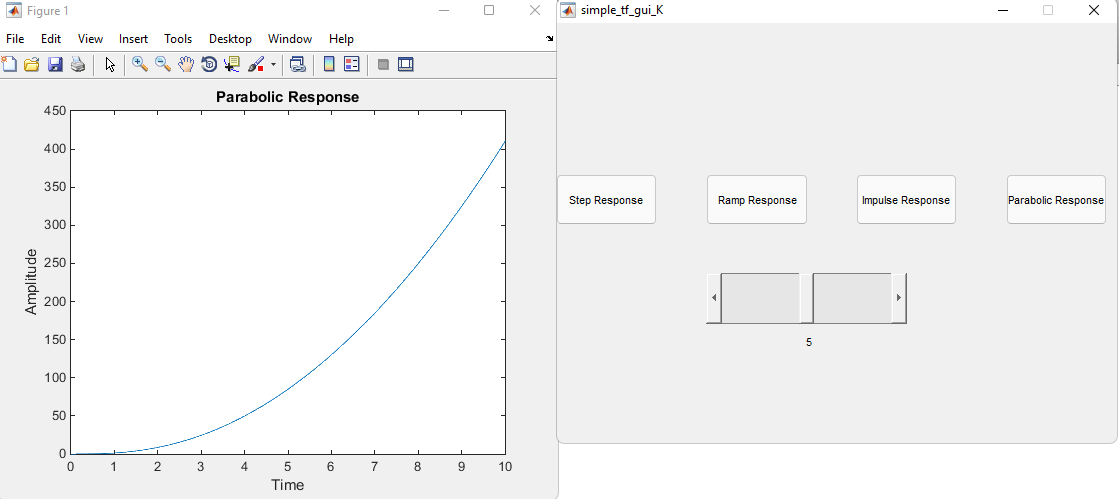
در این برنامه پاسخ ضربه و سهمی و بهره را به برنامه قبلی اضافه کردیم
.
کد برنامه:
.
function varargout = simple_tf_gui_K(varargin)
gui_Singleton = 1;
gui_State = struct('gui_Name', mfilename, ...
'gui_Singleton', gui_Singleton, ...
'gui_OpeningFcn', @simple_tf_gui_K_OpeningFcn, ...
'gui_OutputFcn', @simple_tf_gui_K_OutputFcn, ...
'gui_LayoutFcn', [] , ...
'gui_Callback', []);
if nargin && ischar(varargin{1})
gui_State.gui_Callback = str2func(varargin{1});
end
if nargout
[varargout{1:nargout}] = gui_mainfcn(gui_State, varargin{:});
else
gui_mainfcn(gui_State, varargin{:});
end
% End initialization code - DO NOT EDIT
% Define your transfer function here
global G;
num = [1]; % Numerator coefficients
den = [1 1]; % Denominator coefficients
G = tf(num, den); % Store G in handles
% --- Executes just before simple_tf_gui_PID is made visible.
function simple_tf_gui_K_OpeningFcn(hObject, eventdata, handles, varargin)
% Choose default command line output for simple_tf_gui_PID
handles.output = hObject;
% Update handles structure
guidata(hObject, handles);
% UIWAIT makes simple_tf_gui_K wait for user response (see UIRESUME)
% uiwait(handles.figure1);
% --- Outputs from this function are returned to the command line.
function varargout = simple_tf_gui_K_OutputFcn(hObject, eventdata, handles)
varargout{1} = handles.output;
% --- Executes on slider movement.
function k_value_Callback(hObject, eventdata, handles)
% hObject handle to k_value (see GCBO)
% eventdata reserved - to be defined in a future version of MATLAB
% handles structure with handles and user data (see GUIDATA)
% Get the current value of the slider
K = get(hObject,'Value');
% Update the transfer function with the new gain
global G;
[num,den] = tfdata(G,'v'); % Get the numerator and denominator of G
G = tf(K*num, den); % Update G with the new gain
% Update the string property of k_value_display
set(handles.k_value_display, 'String', num2str(K));
% --- Executes during object creation, after setting all properties.
function k_value_CreateFcn(hObject, eventdata, handles)
% hObject handle to k_value (see GCBO)
% eventdata reserved - to be defined in a future version of MATLAB
% handles empty - handles not created until after all CreateFcns called
% Set the initial value and range of the slider
set(hObject, 'Min', 0);
set(hObject, 'Max', 10);
set(hObject, 'Value', 0);
set(hObject, 'SliderStep', [0.01 0.1]); % Major and minor steps of 0.1 and 0.01
if isequal(get(hObject,'BackgroundColor'), get(0,'defaultUicontrolBackgroundColor'))
set(hObject,'BackgroundColor',[.9 .9 .9]);
end
% --- Executes on button press in step.
function step_Callback(hObject, eventdata, handles)
% Declare G as a global variable
global G;
% hObject handle to step (see GCBO)
% eventdata reserved - to be defined in a future version of MATLAB
% handles structure with handles and user data (see GUIDATA)
% Get the current value of the slider
K = get(handles.k_value,'Value');
% Update the transfer function with the new gain
[num,den] = tfdata(G,'v'); % Get the numerator and denominator of G
G = tf(K*num, den); % Update G with the new gain
[y, t] = step(G);
figure;
plot(t, y);
title('Step Response');
xlabel('Time');
ylabel('Amplitude');
% --- Executes on button press in ramp.
function ramp_Callback(hObject, eventdata, handles)
% Declare G as a global variable
global G;
% hObject handle to ramp (see GCBO)
% eventdata reserved - to be defined in a future version of MATLAB
% handles structure with handles and user data (see GUIDATA)
% Get the current value of the slider
K = get(handles.k_value,'Value');
% Update the transfer function with the new gain
[num,den] = tfdata(G,'v'); % Get the numerator and denominator of G
G = tf(K*num, den); % Update G with the new gain
% Compute and plot the ramp response
t = 0:0.01:10; % Time vector
u = t; % Ramp input
y = lsim(G, u, t); % Compute the response
figure;
plot(t, y);
title('Ramp Response');
xlabel('Time');
ylabel('Amplitude');
% --- Executes on button press in impulse.
function impulse_Callback(hObject, eventdata, handles)
% Declare G as a global variable
global G;
% hObject handle to impulse (see GCBO)
% eventdata reserved - to be defined in a future version of MATLAB
% handles structure with handles and user data (see GUIDATA)
% Get the current value of the slider
K = get(handles.k_value,'Value');
% Update the transfer function with the new gain
[num,den] = tfdata(G,'v'); % Get the numerator and denominator of G
G = tf(K*num, den); % Update G with the new gain
[y, t] = impulse(G);
figure;
plot(t, y);
title('Impulse Response');
xlabel('Time');
ylabel('Amplitude');
% --- Executes on button press in paraboic.
function parabolic_Callback(hObject, eventdata, handles)
% Declare G as a global variable
global G;
% hObject handle to ramp (see GCBO)
% eventdata reserved - to be defined in a future version of MATLAB
% handles structure with handles and user data (see GUIDATA)
% Get the current value of the slider
K = get(handles.k_value,'Value');
% Update the transfer function with the new gain
[num,den] = tfdata(G,'v'); % Get the numerator and denominator of G
G = tf(K*num, den); % Update G with the new gain
% Compute and plot the parabolic response
t = 0:0.01:10; % Time vector
u = t.^2; % Parabolic input
y = lsim(G, u, t); % Compute the response
figure;
plot(t, y);
title('Parabolic Response');
xlabel('Time');
ylabel('Amplitude');
.
.
برنامه سوم:
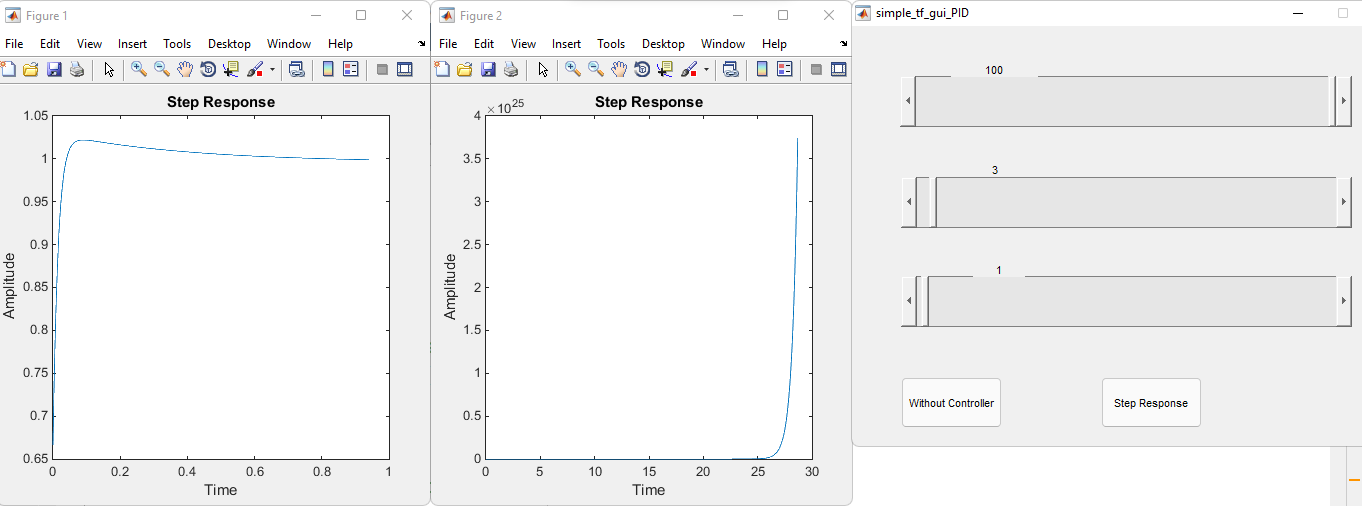
را دستی تغییر میدهیم و نتیجه را بلادرنگ مشاهده میکنیم و با پاسخ بدون کنترل کننده میتوانیم مقایسه کنیم pid در این برنامه پامترامترهای کنترل کننده
.
کد برنامه:
.
function varargout = simple_tf_gui_PID(varargin)
% SIMPLE_TF_GUI_PID MATLAB code for simple_tf_gui_PID.fig
% SIMPLE_TF_GUI_PID, by itself, creates a new SIMPLE_TF_GUI_PID or raises the existing
% singleton*.
%
% H = SIMPLE_TF_GUI_PID returns the handle to a new SIMPLE_TF_GUI_PID or the handle to
% the existing singleton*.
%
% SIMPLE_TF_GUI_PID('CALLBACK',hObject,eventData,handles,...) calls the local
% function named CALLBACK in SIMPLE_TF_GUI_PID.M with the given input arguments.
%
% SIMPLE_TF_GUI_PID('Property','Value',...) creates a new SIMPLE_TF_GUI_PID or raises the
% existing singleton*. Starting from the left, property value pairs are
% applied to the GUI before simple_tf_gui_PID_OpeningFcn gets called. An
% unrecognized property name or invalid value makes property application
% stop. All inputs are passed to simple_tf_gui_PID_OpeningFcn via varargin.
%
% *See GUI Options on GUIDE's Tools menu. Choose "GUI allows only one
% instance to run (singleton)".
%
% See also: GUIDE, GUIDATA, GUIHANDLES
% Edit the above text to modify the response to help simple_tf_gui_PID
% Last Modified by GUIDE v2.5 22-Jan-2024 20:57:09
% Begin initialization code - DO NOT EDIT
gui_Singleton = 1;
gui_State = struct('gui_Name', mfilename, ...
'gui_Singleton', gui_Singleton, ...
'gui_OpeningFcn', @simple_tf_gui_PID_OpeningFcn, ...
'gui_OutputFcn', @simple_tf_gui_PID_OutputFcn, ...
'gui_LayoutFcn', [] , ...
'gui_Callback', []);
if nargin && ischar(varargin{1})
gui_State.gui_Callback = str2func(varargin{1});
end
if nargout
[varargout{1:nargout}] = gui_mainfcn(gui_State, varargin{:});
else
gui_mainfcn(gui_State, varargin{:});
end
% End initialization code - DO NOT EDIT
% Define your transfer function here
global G F;
% Define the unstable transfer function
num = [2 5]; % Numerator coefficients
den = [1 -3 2]; % Denominator coefficients
G = tf(num, den); % Transfer function
% Define your PID controller here
Kp = 1; % Proportional gain
Ki = 1; % Integral gain
Kd = 1; % Derivative gain
F = pid(Kp, Ki, Kd); % Store F in handles
% --- Executes just before simple_tf_gui_PID is made visible.
function simple_tf_gui_PID_OpeningFcn(hObject, eventdata, handles, varargin)
% This function has no output args, see OutputFcn.
% hObject handle to figure
% eventdata reserved - to be defined in a future version of MATLAB
% handles structure with handles and user data (see GUIDATA)
% varargin command line arguments to simple_tf_gui_PID (see VARARGIN)
% Choose default command line output for simple_tf_gui_PID
handles.output = hObject;
% Update handles structure
guidata(hObject, handles);
% UIWAIT makes simple_tf_gui_PID wait for user response (see UIRESUME)
% uiwait(handles.figure1);
% --- Outputs from this function are returned to the command line.
function varargout = simple_tf_gui_PID_OutputFcn(hObject, eventdata, handles)
% varargout cell array for returning output args (see VARARGOUT);
% hObject handle to figure
% eventdata reserved - to be defined in a future version of MATLAB
% handles structure with handles and user data (see GUIDATA)
% Get default command line output from handles structure
varargout{1} = handles.output;
% --- Executes on slider movement.
function kp_value_Callback(hObject, eventdata, handles)
% Get the current value of the slider
Kp = get(hObject,'Value');
% Declare G,F as a global variable
global F G;
% Update the PID controller with the new gain
[Kp_old, Ki, Kd] = piddata(F); % Get the gains of F
F = pid(Kp, Ki, Kd); % Update F with the new gain
% Update the string property of kp_value_display
set(handles.kp_value_display, 'String', num2str(Kp));
% Form the closed-loop system
sys_cl = feedback(G*F, 1);
figure(1)
% Compute and plot the step response
[y, t] = step(sys_cl);
plot(t, y);
title('Step Response');
xlabel('Time');
ylabel('Amplitude');
% Update the plot
drawnow;
% --- Executes during object creation, after setting all properties.
function kp_value_CreateFcn(hObject, eventdata, handles)
% hObject handle to kp_value (see GCBO)
% eventdata reserved - to be defined in a future version of MATLAB
% handles empty - handles not created until after all CreateFcns called
% Set the initial value and range of the slider
set(hObject, 'Min', 0);
set(hObject, 'Max', 100);
set(hObject, 'Value', 0);
set(hObject, 'SliderStep', [0.01 0.01]); % Major and minor steps of 0.01 and 0.01
% Hint: slider controls usually have a light gray background.
if isequal(get(hObject,'BackgroundColor'), get(0,'defaultUicontrolBackgroundColor'))
set(hObject,'BackgroundColor',[.9 .9 .9]);
end
% --- Executes on slider movement.
function ki_value_Callback(hObject, eventdata, handles)
% Get the current value of the slider
Ki = get(hObject,'Value');
% Declare G,F as a global variable
global F G;
% Update the PID controller with the new gain
[Kp, Ki_old, Kd] = piddata(F); % Get the gains of F
F = pid(Kp, Ki, Kd); % Update F with the new gain
% Update the string property of ki_value_display
set(handles.ki_value_display, 'String', num2str(Ki));
% Form the closed-loop system
sys_cl = feedback(G*F, 1);
figure(1)
% Compute and plot the step response
[y, t] = step(sys_cl);
plot(t, y);
title('Step Response');
xlabel('Time');
ylabel('Amplitude');
% Update the plot
drawnow;
% --- Executes during object creation, after setting all properties.
function ki_value_CreateFcn(hObject, eventdata, handles)
% hObject handle to ki_value (see GCBO)
% eventdata reserved - to be defined in a future version of MATLAB
% handles empty - handles not created until after all CreateFcns called
% Set the initial value and range of the slider
set(hObject, 'Min', 0);
set(hObject, 'Max', 100);
set(hObject, 'Value', 0);
set(hObject, 'SliderStep', [0.01 0.01]); % Major and minor steps of 0.01 and 0.01
% Hint: slider controls usually have a light gray background.
if isequal(get(hObject,'BackgroundColor'), get(0,'defaultUicontrolBackgroundColor'))
set(hObject,'BackgroundColor',[.9 .9 .9]);
end
% --- Executes on slider movement.
function kd_value_Callback(hObject, eventdata, handles)
% Get the current value of the slider
Kd = get(hObject,'Value');
% Declare G,F as a global variable
global F G;
% Update the PID controller with the new gain
[Kp, Ki, Kd_old] = piddata(F); % Get the gains of F
F = pid(Kp, Ki, Kd); % Update F with the new gain
% Update the string property of kd_value_display
set(handles.kd_value_display, 'String', num2str(Kd));
% Form the closed-loop system
sys_cl = feedback(G*F, 1);
figure(1)
% Compute and plot the step response
[y, t] = step(sys_cl);
plot(t, y);
title('Step Response');
xlabel('Time');
ylabel('Amplitude');
% Update the plot
drawnow;
% --- Executes during object creation, after setting all properties.
function kd_value_CreateFcn(hObject, eventdata, handles)
% hObject handle to kd_value (see GCBO)
% eventdata reserved - to be defined in a future version of MATLAB
% handles empty - handles not created until after all CreateFcns called
% Set the initial value and range of the slider
set(hObject, 'Min', 0);
set(hObject, 'Max', 100);
set(hObject, 'Value', 0);
set(hObject, 'SliderStep', [0.01 0.01]); % Major and minor steps of 0.01 and 0.01
% Hint: slider controls usually have a light gray background.
if isequal(get(hObject,'BackgroundColor'), get(0,'defaultUicontrolBackgroundColor'))
set(hObject,'BackgroundColor',[.9 .9 .9]);
end
% --- Executes on button press in step.
function step_Callback(hObject, eventdata, handles)
% Declare G,F as a global variable
global G F;
% Get the current value of the sliders
Kp = get(handles.kp_value,'Value');
Ki = get(handles.ki_value,'Value');
Kd = get(handles.kd_value,'Value');
% Update the PID controller with the new gains
F = pid(Kp, Ki, Kd); % Update F with the new gains
% Form the closed-loop system
sys_cl = feedback(G*F, 1);
% Compute and plot the step response
[y, t] = step(sys_cl);
figure;
plot(t, y);
title('Step Response');
xlabel('Time');
ylabel('Amplitude');
% --- Executes on button press in transfer_function.
function transfer_function_Callback(hObject, eventdata, handles)
% Declare G as a global variable
global G;
% Compute and plot the step response
[y, t] = step(G);
figure;
plot(t, y);
title('Step Response');
xlabel('Time');
ylabel('Amplitude');
.
.
.



دیدگاهها
هیچ نظری هنوز ثبت نشده است.